
Bill Pay with Woodforest lets you set up e-bills for recognized payees, payment reminders, recurring payments, and so much more!
We ensure your timely payments are made safe and secure on the date(s) you selected and none of your account information will be shared with your payees.
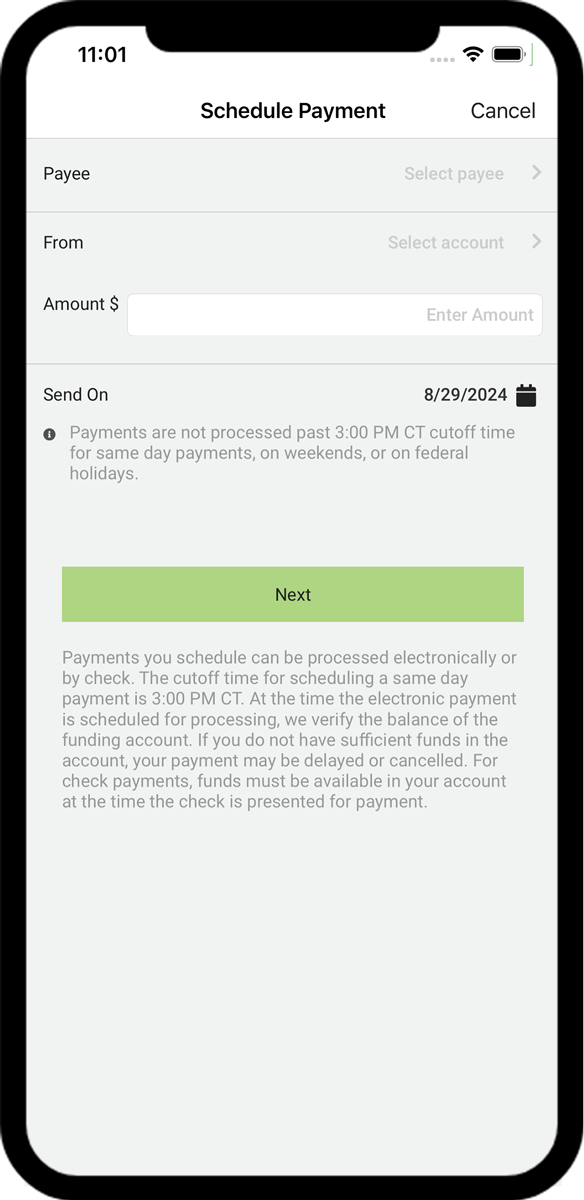
Pay anytime, anywhere with our Woodforest Mobile Banking App(1) for a convenient way to manage your expenses. Plan ahead and schedule your bill payments on your own time.
No more wrestling with checks, stamps, or envelopes. Save time with our quick, easy, and secure online bill payment service. Set it up today and let us work for you!
In order to use Bill Pay, in the Mobile Banking App(1), you will need to set up a payee -- which can only be done in Online Banking. Before you use Bill Pay, view the demos below.
Bank anytime, anywhere with our Mobile Banking App(1).
View Bill Pay demo instructions
Download the latest Mobile Banking App(1) update to use our Bill Pay feature on your mobile device.

You must be enrolled in Online Services to access your account on our Mobile Banking App(1).
Bank anytime, anywhere with our Mobile Banking App(1).
View Bill Pay demo instructions
Download the latest Mobile Banking App(1) update to use our Bill Pay feature on your mobile device.

You must be enrolled in Online Services to access your account on our Mobile Banking App(1).
Online and Mobile Banking(1) with Woodforest offers so much more!
Bill payments are sent to a Payee electronically or by paper check.
Electronic payments are debited from your account on the payment "Send on" date, and typically credited by the Payee on the "Deliver by" date (within 2 - 4 business days from receipt).
Paper checks are mailed to the Payee. Contact the Payee to verify if the payment has been received and applied to your account. Make note of the date the payment was applied; the check should post to your account within 5 - 7 business days. If you feel plenty of time has elapsed, you can place a Stop Payment on the check by visiting your local branch, contacting us, or making a request through Online Banking. For more information on Stop Payments, including a list of fees that may apply, please refer to our Terms and Conditions.
When setting up a Payee, if the address is reflected as "On file", this indicates the Payee is paid electronically. Also, when you make a payment, the Send on / Deliver by dates are 2 business days for electronic payments. Once a payment is scheduled, the text "Check" or "Electronic" is displayed next to the Deliver by date in both the Multi Pay and the Single Pay view. You can also select a payment from the Activity or History tabs and view the Payment Details to see if "Electronic" displays for Delivery type.
Keep in mind, a Payee that accepted electronic payments one month may change their processes and begin accepting checks only and vice versa.
Many bills have varying payment amounts and due dates, such as utility bills. For these payments, schedule a one-time (manual) payment. Some payments such as mortgages and auto loans have fixed payment amounts, due dates, and frequencies. For these types of payments, create a repeating (automatic or recurring) payment schedule (rule) and we will process the payment at the selected frequency for the indicated amount with no further action needed by you.
You can NOT edit a payment that has been processed. To edit a pending Bill Payment:
You can NOT cancel or edit a payment that has been processed. To cancel a pending Bill Payment:
You can NOT cancel a payment that has been processed. To cancel an automatic (recurring) payment:
Yes, if you delete a Payee, your automatic payment rule and all scheduled future payments to that Payee will be canceled.
The Inactive Payee feature is not supported within Bill Pay 2.0, but you can manage infrequently used Payees by selecting "Show/Hide billers" from the "View" dropdown, or by selecting "Hide" from the down arrow or "Options" button actions for the appropriate Payee. You can also create a Custom View that excludes a Payee by selecting "Add custom view" from the "View" dropdown.
Note: If a Payee was inactive prior to the June 2022 upgrade, the Payee will be active, but hidden, within Bill Pay 2.0.
As part of this update, hidden Payees will now display within our Mobile Banking App when previously inactive Payees did not.
Since Bill Payments are set up and directed by you to the Payee, some restrictions apply when disputing a payment. Payees require that they are contacted first. Keep a log of each contact with the Payee. The date, time and who you spoke to are required for certain types of disputes. You may stop a payment on a Bill Payment check that has not cleared your account by visiting your local branch, contacting us, or making a request through Online Banking. Stop Payments are detailed in our Terms and Conditions along with any fees that may apply.
Stop Payments do not apply to certain account debits. Contact your local branch or us to see if the item is eligible for a Stop Payment. Stop Payments require 24 hours to process. Refer to our Terms and Conditions for detailed information on Stop Payments along with any fees that may apply.
To request a Stop Payment through Online Banking, click the Services tab and then Checks under the "Manage My" section. Select "Request a Stop Payment", enter the required information, and then click "Continue".
You may confirm if your payment was processed by viewing your Payment History under the History tab. Select the processed payment to view Payment Details.
You can also find past payments by selecting the down arrow or "Options" button next to the desired Payee and clicking "View payment history".
If you do not see your payment, contact your branch or send a Secure Message through the Online Banking Message Center for assistance.
Need a Proof of Payment?
Contact your branch or send a Secure Message through the Online Banking Message Center requesting a proof of payment and we will be happy to provide one for you!
This depends on whether a payment is made by check or electronic payment. Electronic payments will process on the "Send on" day and funds are debited from your account at that time. The payment may take up to 2 -3 business days for the Payee to apply the payment to your account.
If a Payee does not accept electronic payments, a check is issued and mailed to the Payee; funds will be debited from your account once the check clears. Checks typically take 5 - 7 business days to clear your account. You must have funds available in your account on the day the check is presented for payment.
Bill payments are only processed Monday through Friday, excluding weekends and Federal holidays.
Yes, any scheduled payments not yet processed and any future payments in a recurring series will be sent to the updated Payee address.
Payments can be scheduled the same day, up until approximately 3 PM (CT). At that time, we begin processing pending payments and the earliest "Send on" date for any new payments is the following business day. You can also view the status of processed payments on the History tab to determine if the payment has failed.
You will be sent an email if a payment is not processed due to insufficient funds, incorrect Payee data, or similar reasons. You can also view the status of processed payments on the History tab to determine if the payment has failed.
Please refer to the Alert Preferences page, under the More tab, to view a list of all alerts, including automatic alerts (displayed in gray) and alerts you may configure.
A virtual card payment is a payment made with a single-use credit card number issued to a Payee.
A virtual card payment may be used to remit funds to Payees initiated by Woodforest's Bill Pay processor.
Like many other forms of electronic payments, virtual cards can create a faster, more secure method of sending payments to Payees due to their one-time use characteristics.
Your experience for paying bills will remain the same. The only thing that changes is how the funds are remitted to the Payee.
In addition to the familiar features for adding payees and scheduling/reviewing payments, the upgrade includes the following new features for added convenience:
Smart Reminders: When you make more than one payment to a Smart Reminder eligible Payee, you will automatically be reminded to pay again. Payees are eligible based on how you pay them. For instance, Payees with regular frequencies like utilities, insurance, and some credit cards are Smart Reminder eligible.
Graphical Reporting: Reports now include graphs.
Multi-Pay/Single Pay Views: The Multi-Pay view allows you to set up payments for multiple bills at a time, just like before. The new Single Pay view lets you pay and manage one bill and one Payee at a time.
Funding Account Per Payment: You can now select a “pay from” account for each payment, making paying bills from multiple funding accounts easier.
Email Alerts: New security feature that alerts you via email when a new funding account is added to your Bill Pay service. Designed to prevent fraudsters from adding an unauthorized payment funding account to your Bill Pay relationship.
| Bill Pay 2.0's New Look (PDF) |
|

You can use your Woodforest Debit Card to pay at millions of store locations that accept mobile payments.
Woodforest customers can use the Mobile Banking App(1) to send money to anyone with a U.S. bank account.
Send and receive Western Union transfers directly to/from your Woodforest account.
(1) Data rates may apply. See carrier for details.